Hey fellow Backyard Brains users! 
If you’re trying to install the latest version of SpikeRecorder on a new Windows 11 machine and hitting a brick wall, you’re not alone. I recently ran into this and wanted to share the fix.
 The Problem
When trying to run the SpikeRecorder.msi installer, Windows throws a popup error that says:
“The system administrator has set policies to prevent this installation.”
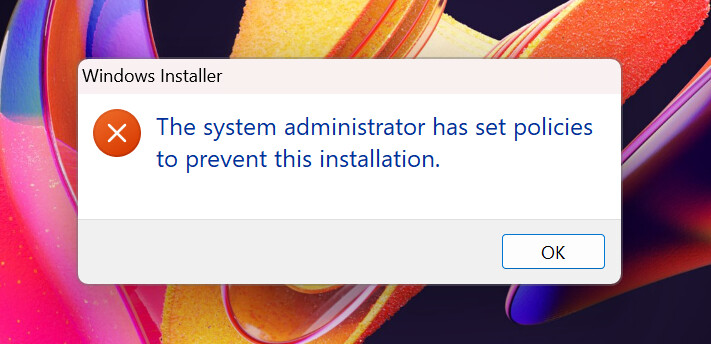
If this is your personal PC, this error is really confusing.
The actual culprit is a relatively new Windows 11 security feature called Smart App Control, which will usually pop up a tiny notification in the bottom right corner of your screen at the same time.
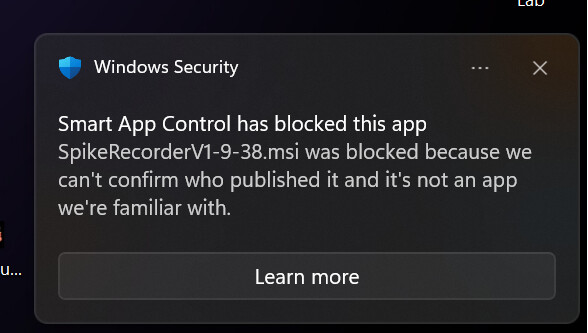
Because SpikeRecorder is a specialized educational tool (and not a massive commercial app), Windows Smart App Control sometimes flags it simply because it doesn’t recognize it yet. It blocks the file, which causes the Windows Installer to throw that generic system administrator error.
 How to Fix It
You can manually bypass this block.
 Solution 1: Unblock the File (Highly Recommended)
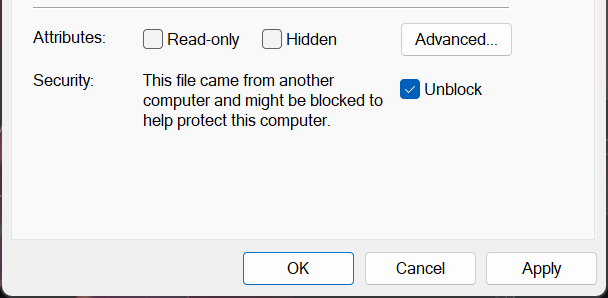
Windows usually just flags the installer because it was downloaded from the internet. You can easily unblock it from the file’s properties.
- Right-click on the SpikeRecorder installer file you just downloaded.
- Select Properties.
- Look at the very bottom of the General tab.
- If you see a security warning that says:
“This file came from another computer and might be blocked…”
check the box next to Unblock.
- If you see a security warning that says:
- Click Apply and OK, then double-click the installer again.
 Solution 2: Turn Off Smart App Control (Use with extreme caution)
If Solution 1 doesn’t work, you can turn off the Smart App Control feature. However, if you’re using a school or university computer, you probably won’t be able to do this.
IMPORTANT MICROSOFT WARNING:
Microsoft designed Smart App Control so that if you turn it off, it cannot be turned back on unless you completely reinstall Windows from scratch.
Steps:
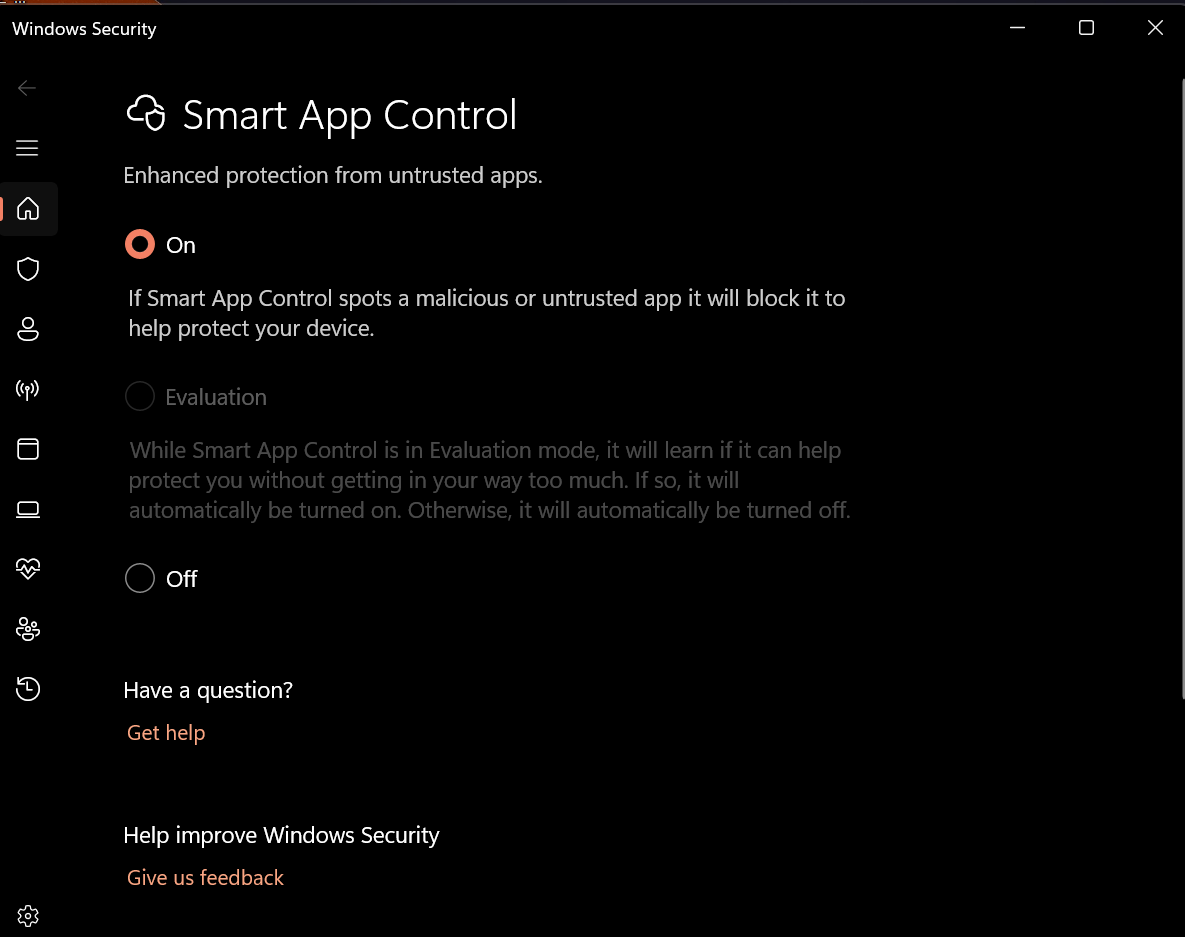
- Go to Windows Settings → Privacy & Security → Windows Security.
- Click App & browser control.
- Click Smart App Control settings.
- Change the toggle from “Evaluation” or “On” to Off.
Hope this helps you get back to recording those spikes and experimenting!
Let us know if you run into any other weird Windows 11 quirks.