I am running Windows 11 Home on a laptop and have been able to install SpikeRecorder. After launching the software I do not see the ECG/EEG icon near the top of the program window that your quick-start leaflet indicates. I see only the Settings, Heartbeat and FFT icons. I found nothing in the app settings to turn the icon on to use that feature. I have another laptop running Windows 10 Home and am likewise not able to find the ECG/EEG button to switch to that operation.
In addition, after opening the app a couple of times on the Windows 11 laptop it now will no longer open even though no system level settings have been changed. From the start menu I do not find the SpikeRecorder listing so have to do a word search to find the app. Then clicking “Open” does nothing. Clicking “Run as administrator” did work a few times. Then when it no longer did I uninstalled then re-installed the app but now still no launch of any kind.
Could you possibly have a solution for these issues please?
Regards,
Matthew
Hello Matthew!
Hope you are doing well. I am sorry to hear you are having issues with our software.
Could you let us know which device are you working with: Heart and Brain SpikerBox or Human SpikerBox?
To get to the bottom of this Spike Recorder crash under Windows 10/11, we’ll need a few different logs. If the app quits immediately, some logs may be sparse, but please follow these steps and then send everything at the end.
1. Identify your Windows 11 version
-
Press Win + R, type winver and hit Enter.
-
In the About Windows window, note both the Version and OS Build.
2. Export the SpikeRecorder log
-
Right‑click the SpikeRecorder icon and choose Run as administrator.
-
If it launches, send us a Spike Recorder log.
3. Pull crash events from Event Viewer
-
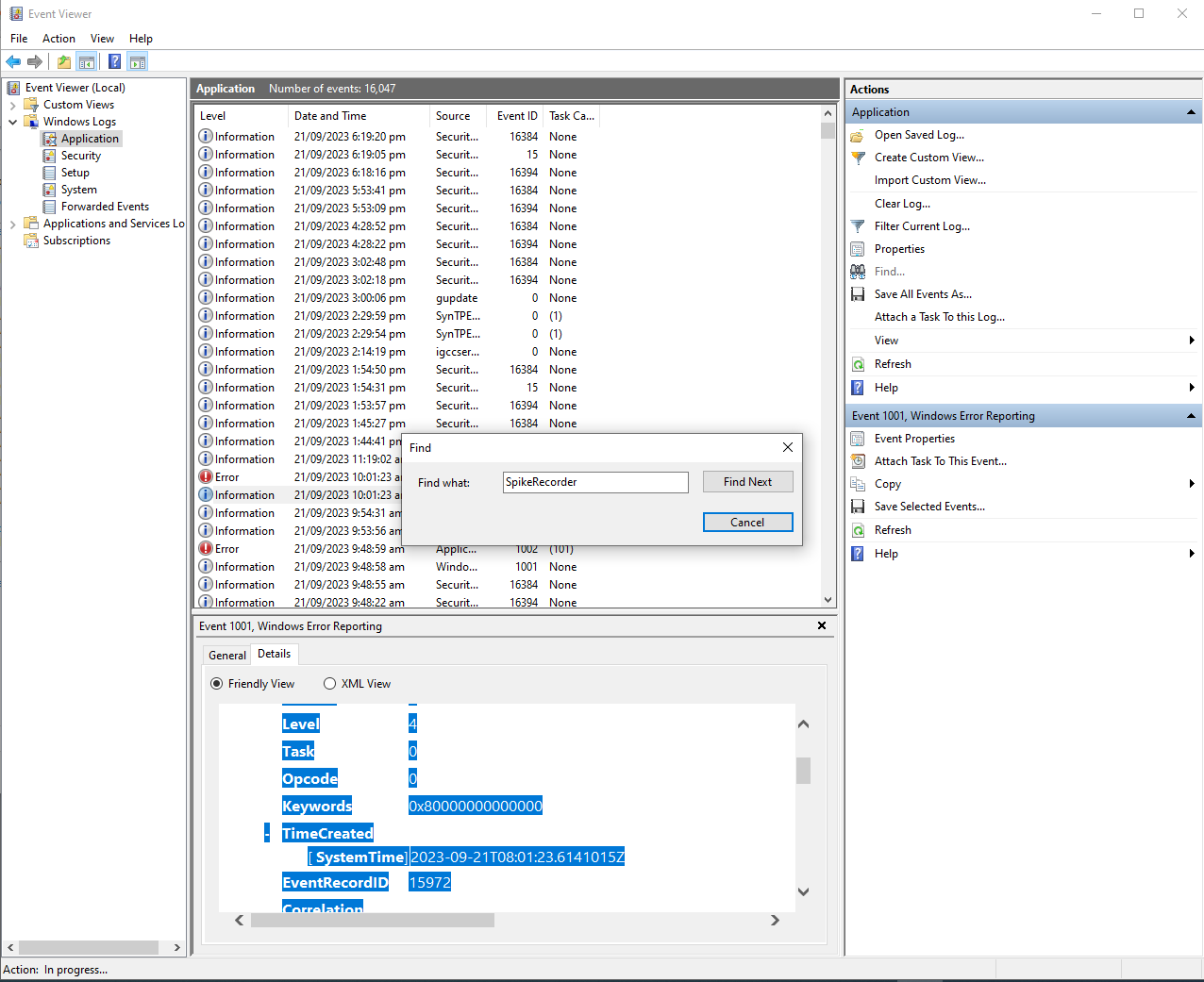
Click Start, search for Event Viewer, and open it.
-
In the left pane, expand Windows Logs → Application.
-
In the right pane, click Find…, enter SpikeRecorder and press Enter.
-
Select the crash event and switch to the Details tab.
-
Select all text with Ctrl + A, then Ctrl + C to copy it.
1276×1041 82.8 KB
4. Fallback: Reliability Monitor
If Event Viewer doesn’t show anything:
-
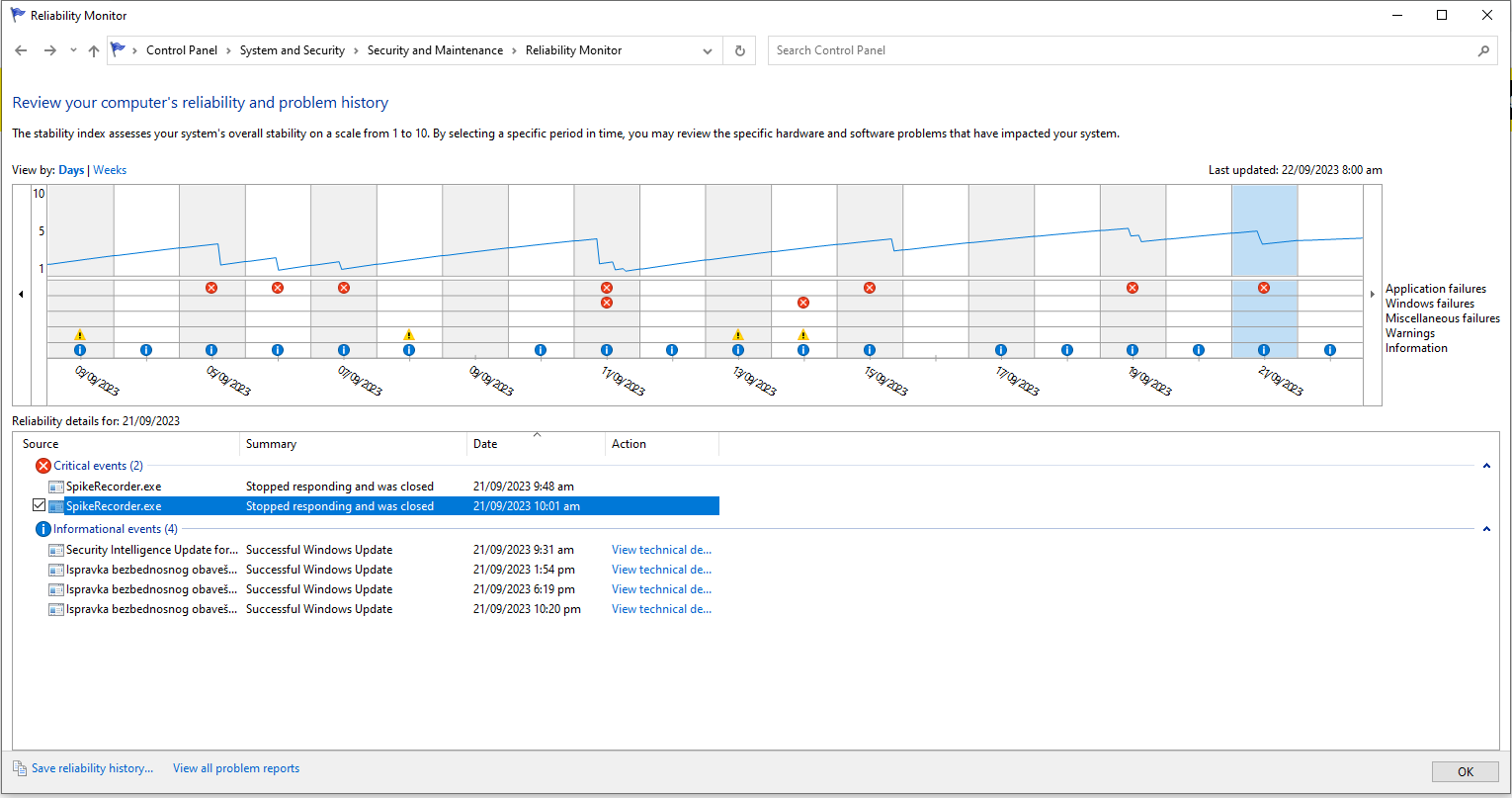
Click Start, search for View reliability history, and open it.
-
Click the date when SpikeRecorder failed.
-
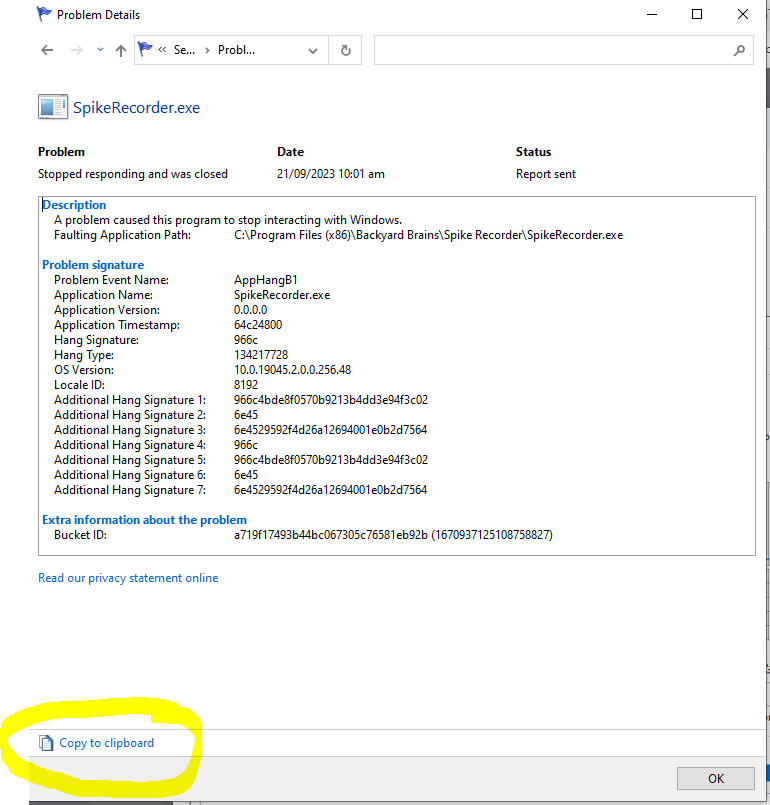
Double‑click the SpikeRecorder – Critical event.
-
Click Copy to clipboard at the bottom.
1530×807 46.7 KB
770×805 26.2 KB
Once you’ve collected everything above, email everything to [email protected]
In the meantime, feel free to try our web app, which is currently in beta. It is compatible with Chrome and Edge browsers and can be accessed here: https://bybrain-staging.web.app/
Looking forward to your logs so we can get this resolved!
Best,
Marija
1 Like